Accessibility for all,
whatever your needs
We believe technology should make the world more interactive, more creative, more entertaining, and more inclusive. By incorporating human-centric, inclusive design into our audio products, we deliver our Kando experience to all our users, regardless of age, ability or environment.

Vision Assist
Get visual support with these features and apps
Intuitive packaging
We design our packaging to be simple to open and easy to read. Higher-contrast text and an improved cut design make opening easier.0

Guide for QR
To help people with low vision locate the QR code for set-up instructions, we’ve added a tactile border around it, making it easier to find by touch.

Clip-type open earbuds design
LinkBuds Clip are clip-type, open earbuds that let you enjoy music while staying aware of your surroundings. Comfortable and safe for everyone, including people with visual disabilities or those who prefer not to wear in‑ear designs.

Easy to wear
Our headphones are thoughtfully designed to be easy to recognise by touch—whether you’re checking left and right, top and bottom, or front and back. For example, WH-1000XM6 makes the front and back easy to distinguish by touch, 1000X THE COLLEXION features L & R markings on the housings, and our true wireless models include a tactile dot on the left earbud to help distinguish left from right.


Assisted control for your Walkman®
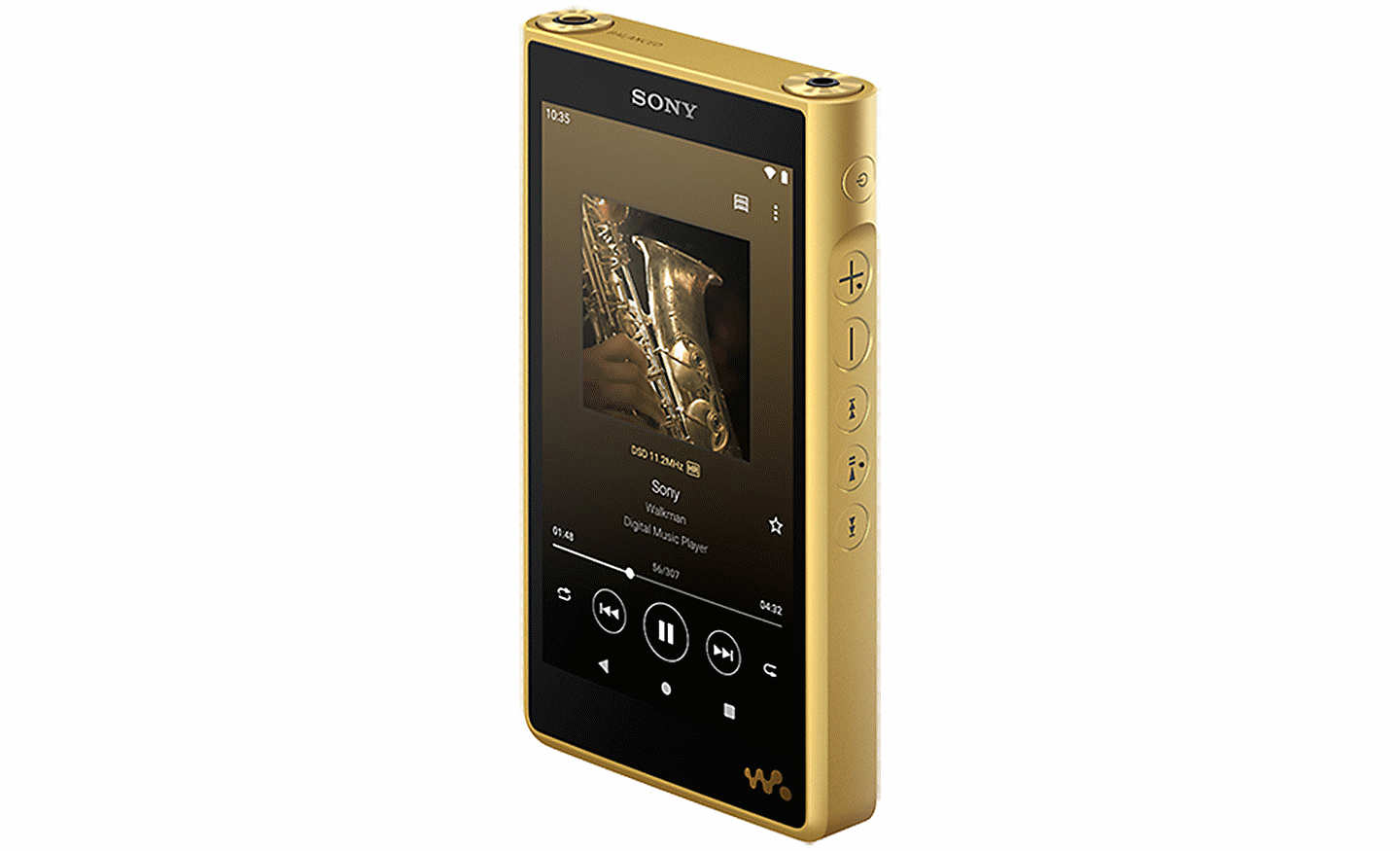
With TalkBack enabled0, you can access on-screen functions without relying on sight or precise touch. Swipe up or down with two fingers to hear available functions and settings. You can still use the device’s buttons for volume, playback and track skip.

Simple headphone control with Sony | Sound Connect
The Sony | Sound Connect app supports the screen reader function0 available on smartphones, for accessible control. Adjust your headphone settings and sound to match your preferences and needs with the Sony | Sound Connect app.
Explore Sony | Sound Connect

Simple wireless speaker control with Sony | Music Center
The Sony | Music Center supports the screen reader function0 available on smartphones. It conveniently brings listening functions together in one place and gives you easy control of wireless speaker functions, allowing you to manage devices directly from your smartphone.
Explore Sony | Music Centre
Hearing Assist
Control the sound and adjust it to suit your preference
Personalised sound for every listener
Sony headphones released after the WH-1000XM6, including true wireless models, now support a 10-band equaliser. This lets users fine-tune sound to their personal hearing profile, including people with hearing difficulties, improving both accessibility and listening comfort.

Hear more of the world around you
With Ambient Sound Mode0, you'll still hear the world around you, even as you enjoy your music. The Sony | Sound Connect app allows you to adjust the ambient sound in 20 different levels or use the Focus on Voice setting to chat without removing your headphones.

Safe Listening with WHO recommendations
Your headphones are even better with the Sound Connect app. Its simple, intuitive interface lets you fine-tune your sound, set up shortcuts, and view your recent listening history. Safe Listening also helps you stay in line with WHO-recommended healthy listening habits.

Action Assist
Make operating your device easier with a range of convenient features
Effortless open, close, and carry
1000X THE COLLEXION features a bag-like design with a grip handle and magnetic closure for quick access. Easy for all to use, including those with low vision or hand mobility issues.
Easy-open packaging
Accessible packaging makes it easy to explore your new headphones for the first time. Easily lift the lid from the side and uncover the intuitive design.
Voice control
Use your voice to play and pause music, skip tracks, adjust volume, and switch Noise Cancelling or Ambient Sound mode, without using your smartphone. Voice control works when connected to compatible devices, including smartphones, PCs and gaming devices.0

Talk and hear only ambient sound
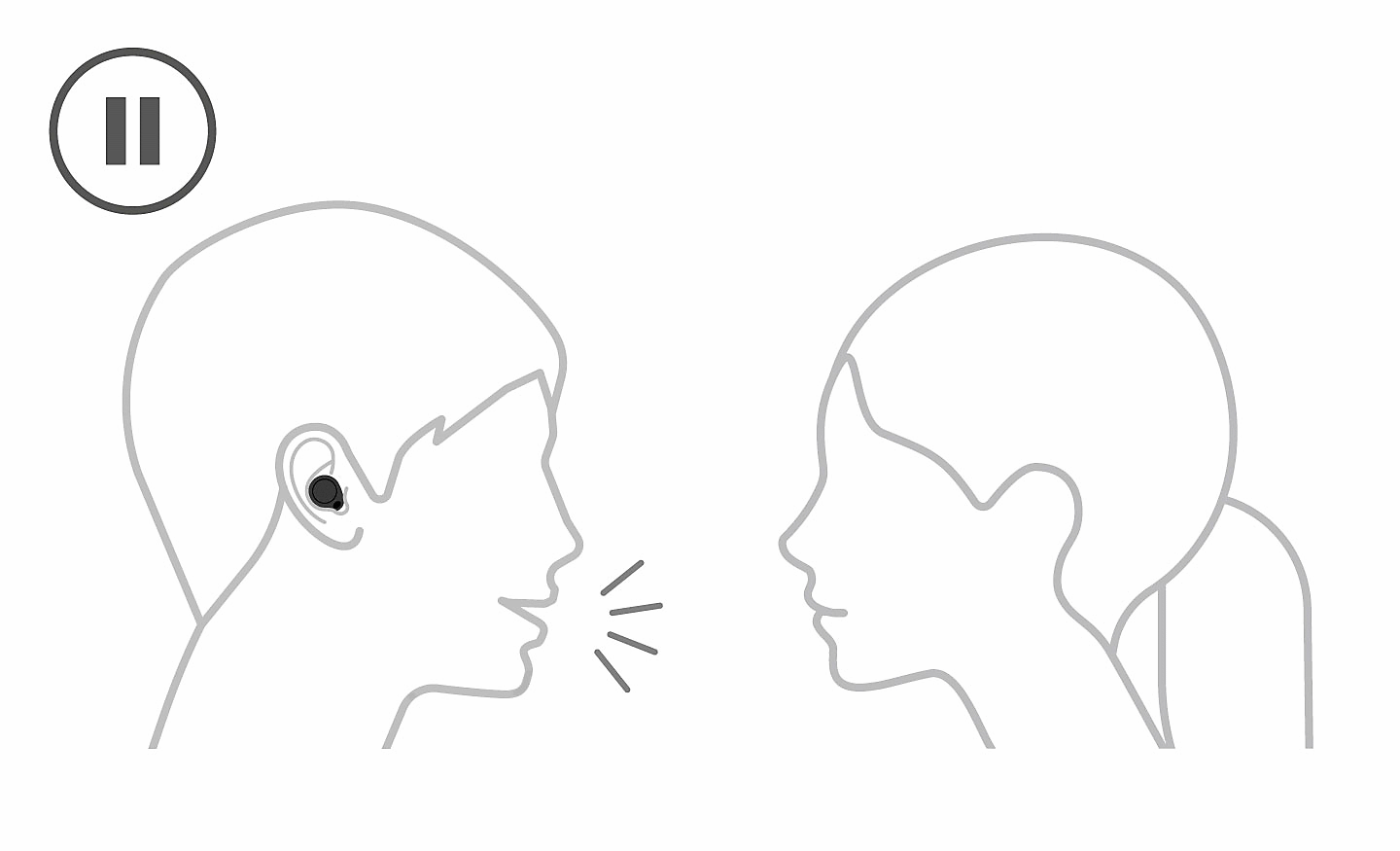
You can set Speak-to-Chat to automatically lower the music volume as soon as you speak to someone, so you can hear ambient sound and conduct a conversation0 — handy if you want to keep your headphones on or your hands are full. And once your chat is over, your music volume returns to normal automatically1.
Scene Based Listening automatically adjusts to whatever you do
Scene Based Listening helps you hear music and information without needing to take action. It senses your behaviour and automatically switches between Noise Cancelling and Ambient Sound Mode, and adjusts music playback based on your environment, activity, and registered locations, without you having to control your headphones.

Control at your fingertips
Our headphones feature intuitive touch control for playback and calls, with customisable controls for volume and Noise Cancelling modes.0 Quick Access lets you launch playback from compatible apps with just a tap of your headphones.

Effortless control, just by moving your head
With Head Gesture Control, you can answer or decline calls0 and use Auto Play1, without lifting a finger. Stay connected and in control, wherever you are.2

Quick Attention
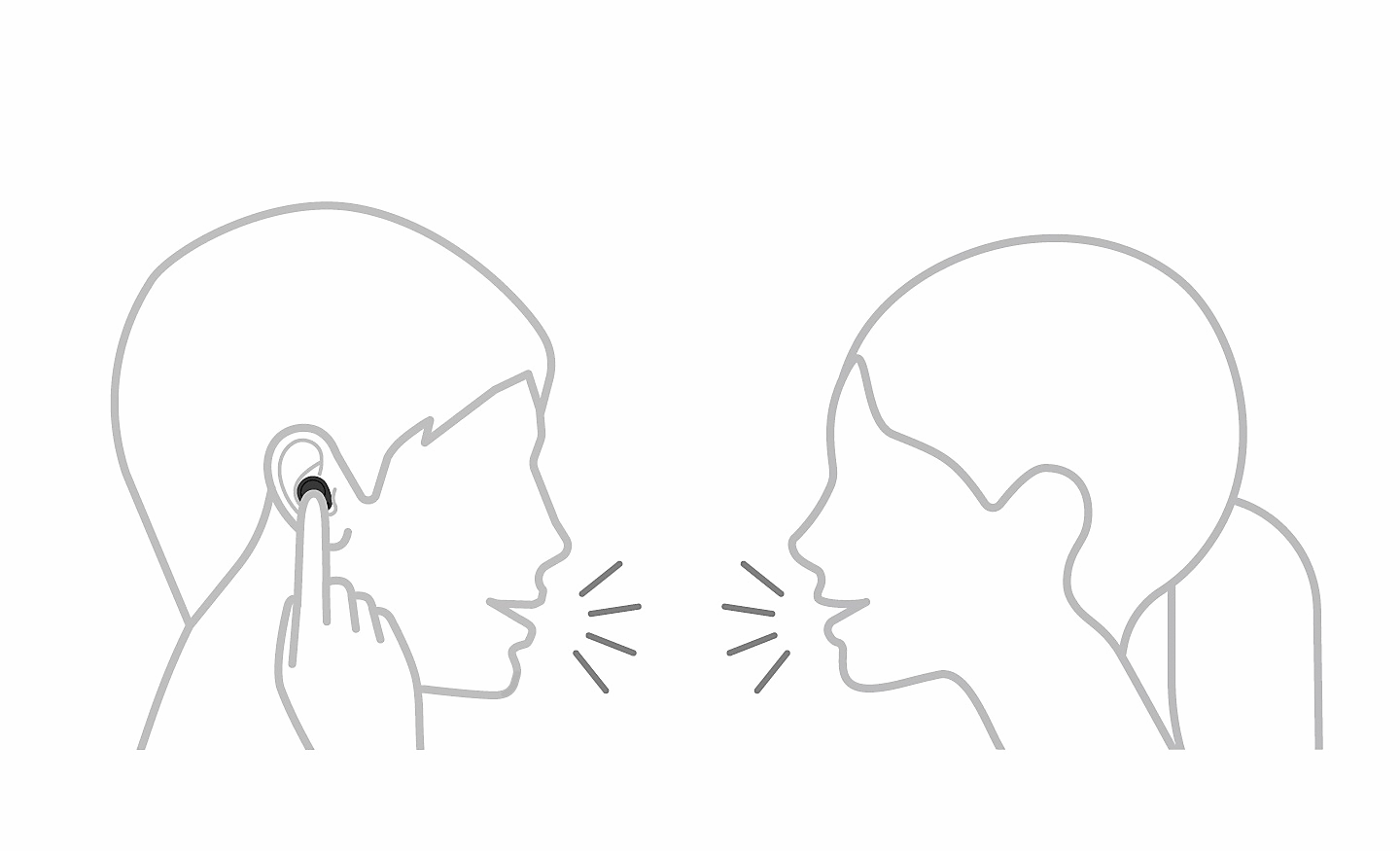
If you need to hear your surroundings, simply place your hand over the housing or earbud0 and your music will turn down to let you hear the ambient sounds.